Setup Razorpay Curlec Payment on e-Janji
This guide explains how to connect your Razorpay Curlec account to your e-Janji so customers can pay for bookings using FPX, credit/debit cards, and eWallets. If you are unfamiliar with Curlec and have yet to sign up for a Merchant Account, please visit How to Register a Free Curlec Merchant Account.
Step 1: Login to Your e-Janji Account
- Go to the e-Janji dashboard.
- Enter your login credentials.
- Once logged in, you will see the Admin Dashboard.
Step 2: Open Payment Settings
- From the dashboard menu, navigate to:
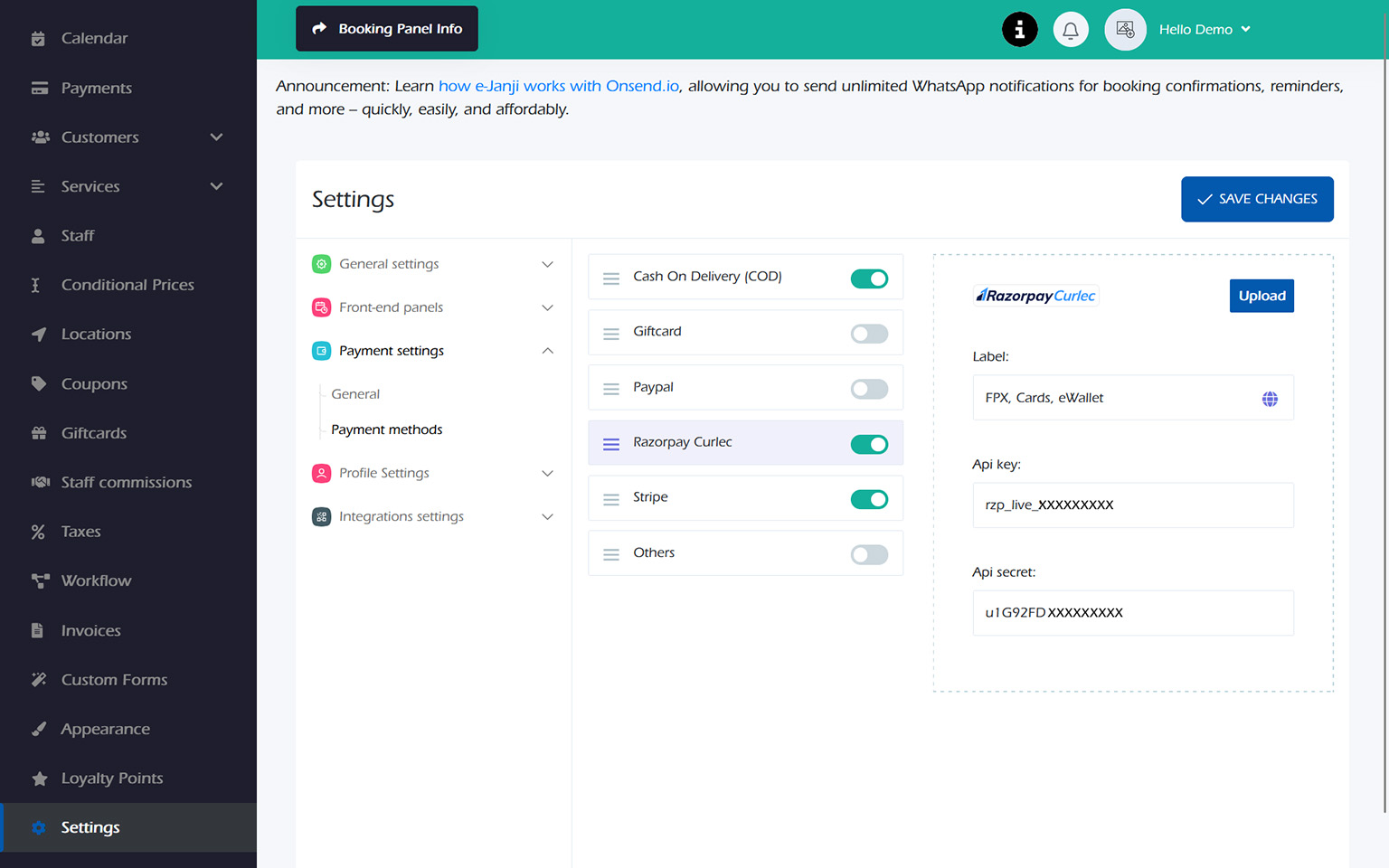
Settings → Payment Settings → Payment Methods - Locate the payment gateway option:
Razorpay Curlec - Enable the payment method.
Step 3: Customize the Payment Method Label
In the Label field, enter the payment options you want customers to see during checkout.
Example:
FPX, Cards, eWallet
This label will appear on the booking payment page, letting customers know which payment options are available.
Step 4: Enter Your Curlec API Credentials
You will need your API Key and API Secret from your Curlec account. Refer to API Authentication
Enter the following:
- API Key
- API Secret
These credentials allow e-Janji to securely connect with your Curlec payment gateway.
Step 5: Save Settings
- Click Save Changes.
- Your payment gateway is now activated.
Customers can now pay for bookings using:
- FPX online banking
- Credit / Debit Cards
- eWallets`